![biglogo.png]](https://kbase.zetaris.com/hs-fs/hubfs/biglogo.png?height=40&name=biglogo.png)
Introduction
Tableau supports JDBC drivers for several connectors including named connectors and other JDBC-based drivers, referred to as Other Databases (JDBC) in the tool.
Configure JDBC Driver
- Download the Zetaris JDBC driver
For Zetaris Enterprise it is located in the installation directory:ZETARIS_DIR/jdbc-driver/
- Close Tableau
- Place the .jar file in the folder for your operating system:
- Windows: C:\Program Files\Tableau\Drivers
- Mac: /Library/JDBC or ~/Library/JDBC
- Linux: /opt/tableau/tableau_driver/jdbc
Determine Zetaris JDBC Connection Information
The JDBC URL for Zetaris has a different format depending on your Zetaris deployment.
For Zetaris Enterprise it will be in the format:
jdbc:zetaris:lightning@[host]:[port]
Note - default port is 10000
Connect to Zetaris
- Open Tableau
- Under Connect, select Other Databases (JDBC).
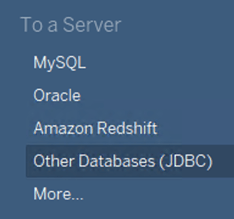
- Specify the following values:
URL: Zetaris JDBC URL - jdbc:zetaris:lightning@<ip adrress>:10000
Dialect: PostgreSQL
Username: your user name
Password: your password - Click Sign in.