![biglogo.png]](https://kbase.zetaris.com/hs-fs/hubfs/biglogo.png?height=40&name=biglogo.png)
Our HCP connection allows you to connect directly to your HCP S3 object store, allowing you to query over it using SQL or Spark, with external connection possibilities too.
Create a standard file connection
Standard file connection
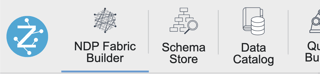
Step 1: Click the NDP Fabric Builder icon.
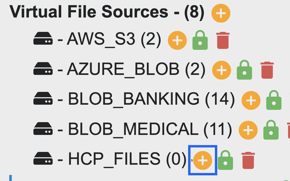
Step 2: Click the '+' next to Virtual File Sources to launch the wizard
Step 3: Name your data source e.g. HCP_FILES
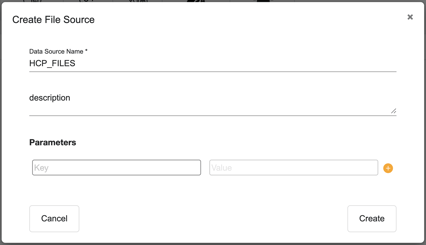
Step 4: Click Create
Step 5: Click the '+' next to the newly created Virtual File Source container
Step 6: Select 'File Store' and click Next
Step 7: Complete the form
- File source: Choose your File Source Type
- Storage: Choose Amazon S3
- Table name: Provide any name (without spaces - use underscore)
- File path: Provide your s3 path (eg. s3a://zetaris-lightning-test/csv-data/tpc-h/customer.csv)
- Endpoint: <accountname>.hitachivantara.com
- Access key: <awsAccessKeyId>
- Security key: <awsSecretAccessKey>
- Delimiter: (only or CSV file types)
- Parameters
- header - true
- inferSchema - true (Optional)
Step 8: Click Next
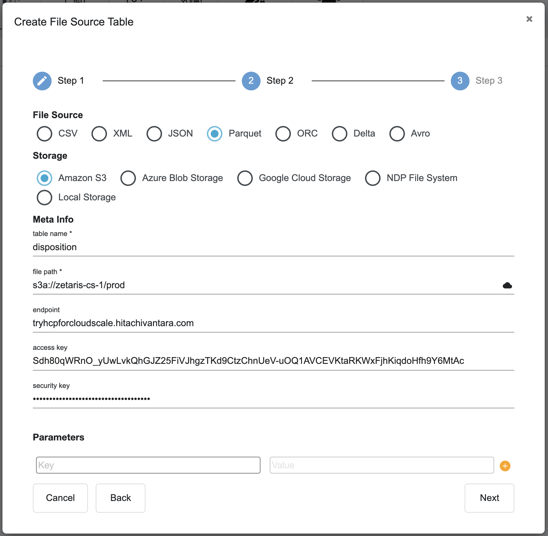
Step 9: Click Create
Lakehouse connection
Step 1: Click the NDP Fabric Builder icon.
Step 2: Click the '+' next to Data Lake Warehouse Source to launch the wizard.
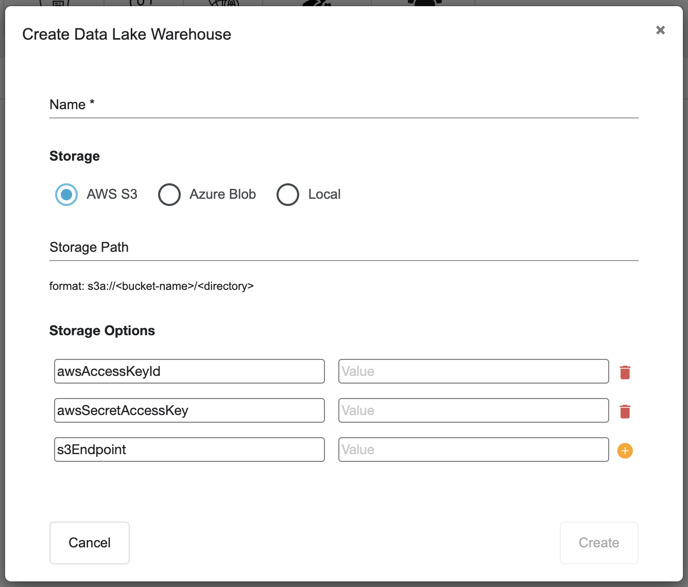
Step 3: Complete the necessary fields as shown below
Name: <AnyName> (all one word)
Storage: Select AWS S3
Storage Path: s3a://path/to/lakehouse
NOTE: For Storage Path, a directory/folder must be created inside the HCP bucket, and called in the string
awsAccessKeyId: <awsAccessKeyId>
awsSecretAccessKey: <awsSecretAccessKey>
s3Endpoint: <accountname>.hitachivantara.com
Step 4: Click Create