![biglogo.png]](https://kbase.zetaris.com/hs-fs/hubfs/biglogo.png?height=40&name=biglogo.png)
Installing Zetaris JDBC Driver
The driver is a single JAR file. It is located in the installation directory
ZETARIS_DIR/jdbc-driver/
It can also be downloaded from the following link.
Download and Install JDBC Driver
Installation of JDBC drivers must be done while Data Science Studio is stopped.
DATA_DIR refers to the data directory of your Data Science Studio installation.
ZETARIS_DIR refers to the installation directory of the Zetaris installation
- Stop Data Science Studio
DATA_DIR/bin/dss stop
- Obtain the JDBC Driver
For Zetaris Enterprise the JDBC driver can be found in the following directory:
ZETARIS_DIR/jdbc-driver/
- Copy Zetaris JDBC driver to the following directory:
DATA_DIR/lib/jdbc
- Start Data Science Studio
DATA_DIR/bin/dss start
Connect to Zetaris
- Login to Data Science Studio
http://<your server address>:11000
-
Go to the Administration > Connection page
-
Click “New connection” and select Other SQL databases
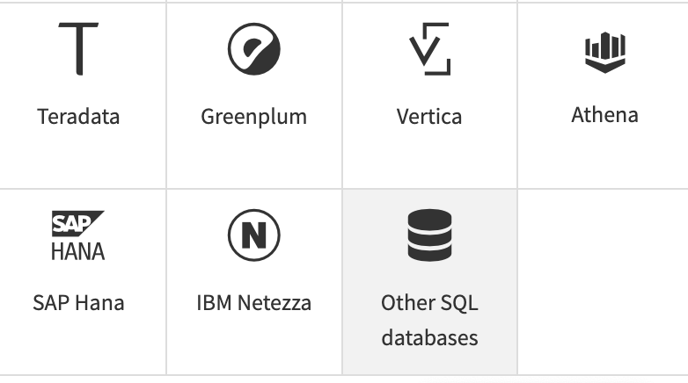
- Enter the following connection information:
Connection Name Zetaris JDBC Driver class com.zetaris.lightning.jdbc.LightningDriver JDBC Url jdbc:zetaris:lightning@[host]:[port] User Zetaris username Password Zetaris password SQL Dialect Hive -
Click Test to validate your connection

Dataiku will attempt to connect to the database, and provide feedback on whether the attempt was successful.
You should receive a confirmation that the connection was successful
-
Click Save to save your connection