![biglogo.png]](https://kbase.zetaris.com/hs-fs/hubfs/biglogo.png?height=40&name=biglogo.png)
Introduction
In Azure, a security group acts as a virtual firewall for your instance to control inbound and outbound traffic. For Zetaris running on Azure, you will need to add inbound rules that allow access to the following ports:
-
Web Application GUI port - default 9001
-
JDBC Driver port - default 10000
Configure Azure
-
Sign in to the Azure portal at https://portal.azure.com.
-
Select your new network security group.
-
Select Inbound security rules from the left menu, then select Add.
- Specify the following values for the GUI port:
Source port ranges: leave the default of Any
Service: select Custom from the drop down list
Destination port ranges, 9001
Protocol: TCP
Action: Allow
Priority: specify a numeric value (e.g. 100)
Name: GUI_9001 (you can assign any value to this)
Confirm your values as per screenshot, then click Add to create the rule.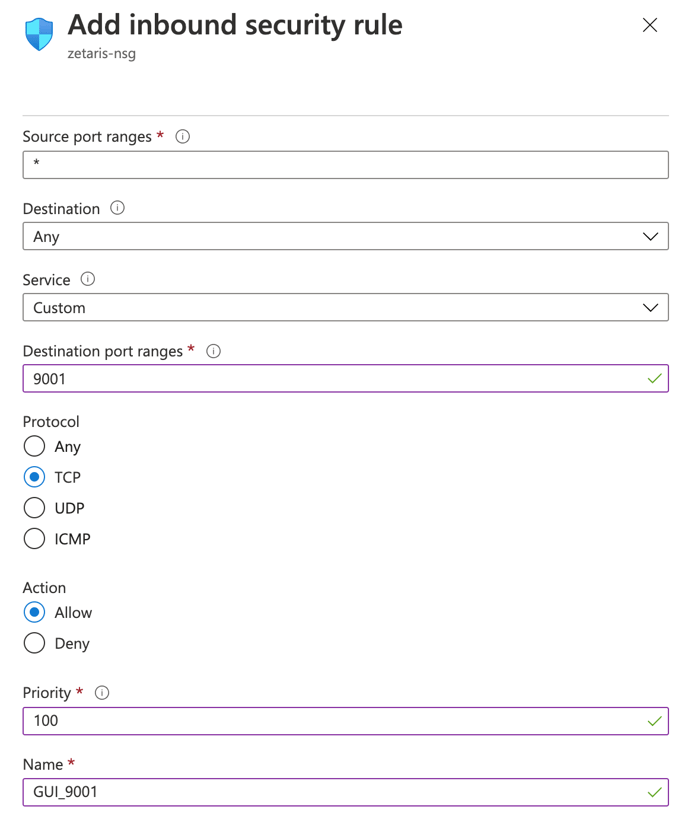
- Specify the following values for the JDBC port:
Source port ranges: leave the default of Any
Service: select Custom from the drop down list
Destination port ranges, 10000
Protocol: TCP
Action: Allow
Priority: specify a numeric value (e.g. 101)
Name: JDBC_1000 (you can assign any value to this)
Confirm your values as per screenshot, then click Add to create the rule.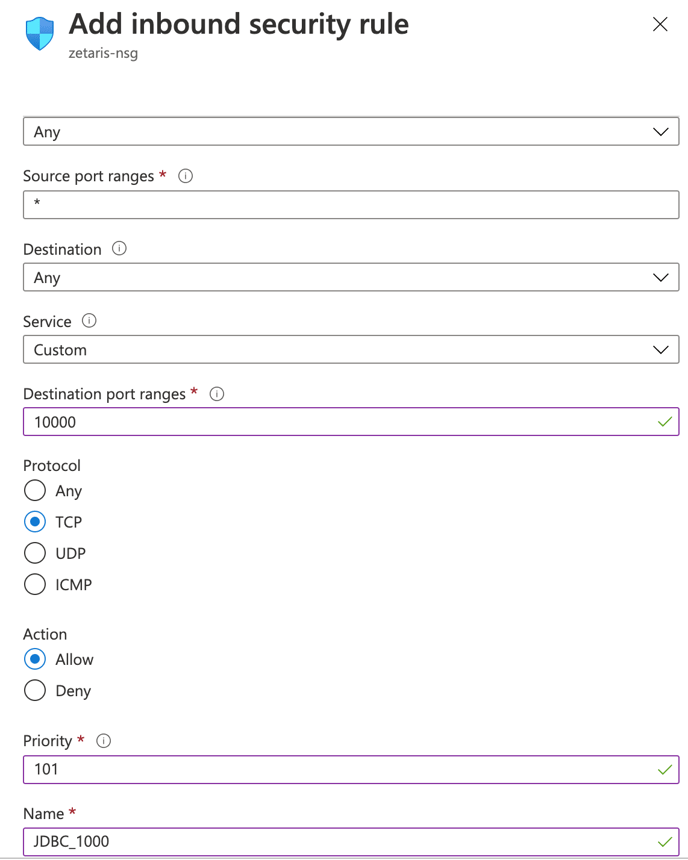
-
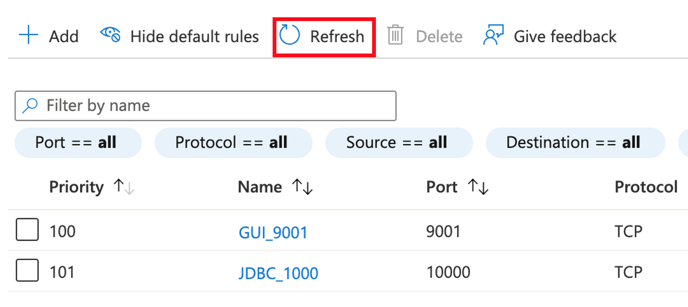
Click Refresh to view your newly created inbound rules